
Send files with light: sharing between devices with no internet at all
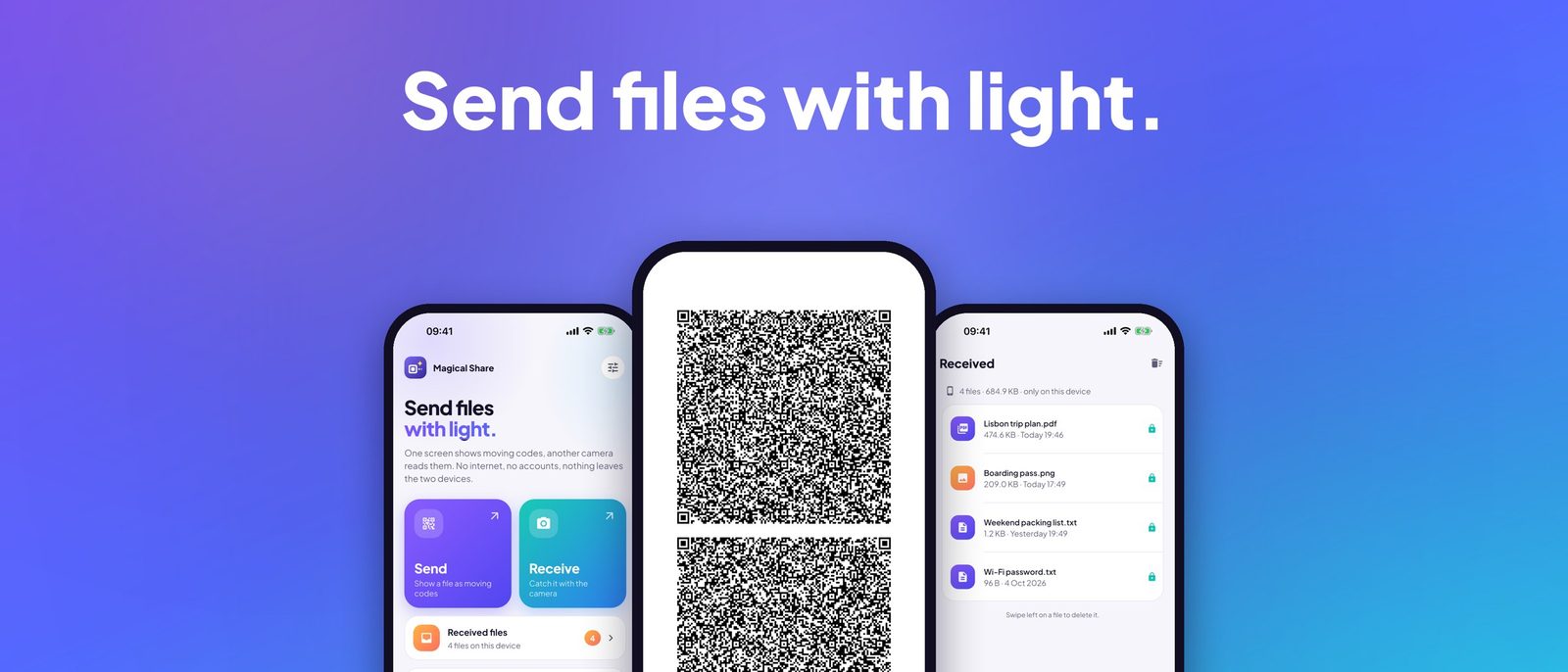
Magical Share turns your screen into a stream of moving QR codes and your camera into the receiver. No Wi-Fi, no Bluetooth, no accounts.
The two-foot problem
Your phone and your laptop sit two feet apart on the same desk. Yet moving one photo between them usually means a round trip through a server on another continent.
We email files to ourselves. We message them to our own chats. We upload a PDF to a cloud drive just to download it again a minute later. Each of those copies lands on someone else's computer, tied to an account, and often stays there long after we forget about it.
And when there is no Wi-Fi at all, on a plane, in a basement office, or on a locked-down work network, most of those tricks stop working entirely.
We wanted something simpler: point one screen at another, and the file just moves. No internet, no account, no copy left behind anywhere. That idea became Magical Share.
Meet Magical Share
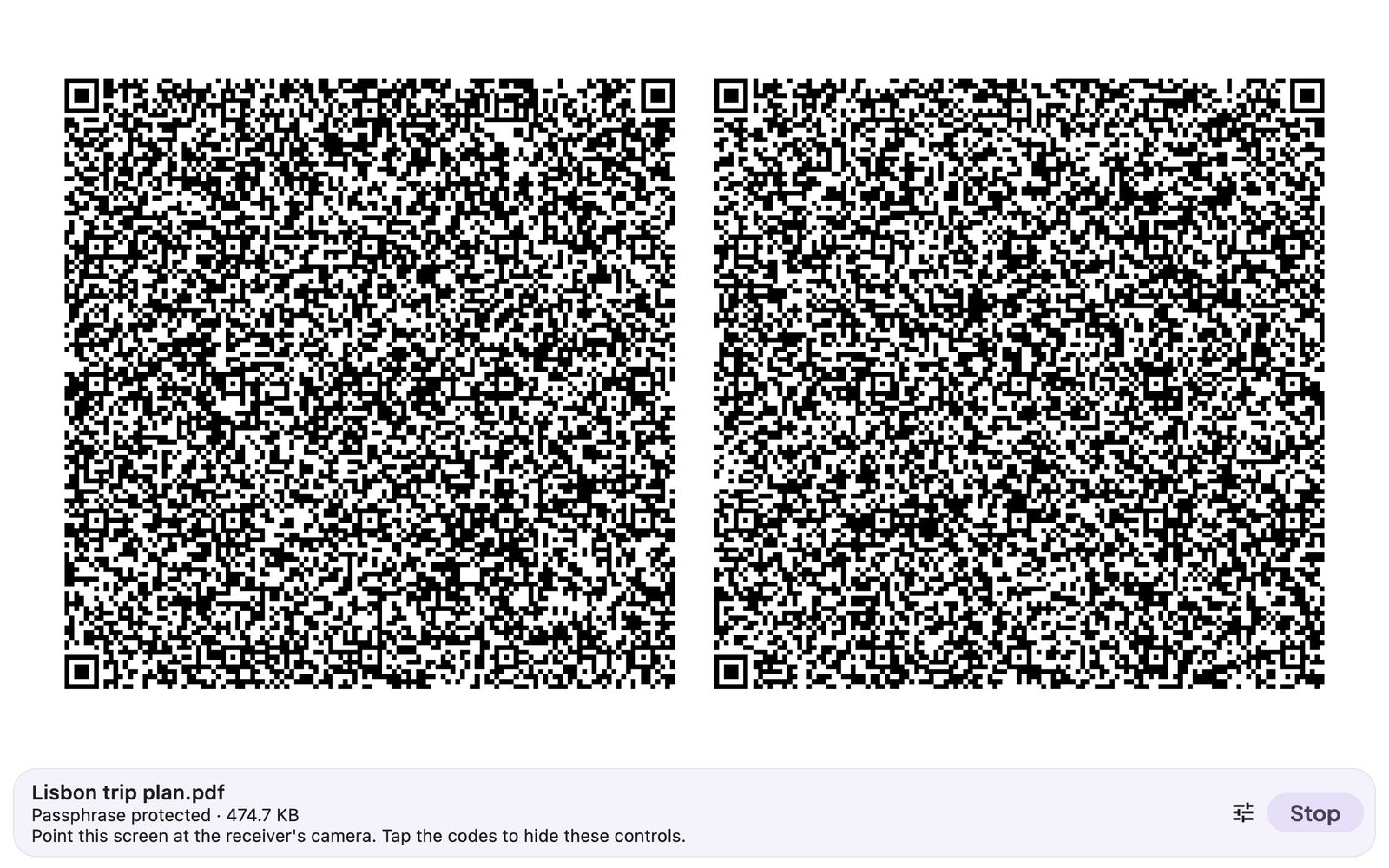
Magical Share moves files between nearby devices using light. The sending device shows a stream of moving codes on its screen. The receiving phone reads them with its camera and rebuilds the file.
Nothing goes over the internet, Wi-Fi or Bluetooth. There is nothing to pair and no account to create. It works between an iPhone and an Android phone, from a computer to a phone, and anywhere there is no signal.
It comes in three forms:
- A free web app that sends from any computer's browser, at apps.zincirx.com/magicalshare/web.
- An Android app that sends and receives, on Google Play.
- A Mac app that sends, on the Mac App Store. The iPhone and iPad version is on its way.
How it works, in plain English
Every transfer goes through three steps.
- Packed and sealed. The app wraps the file with its name, size and a SHA-256 fingerprint. It can compress the file and encrypt it.
- Turned into a fountain of codes. The file is split into blocks, and each frame mixes a few blocks together. The screen shows two large QR codes at a time, 30 times a second.
- Caught and checked. The receiver decodes camera frames in the background and works out the original blocks. Once it has them all, it checks every byte against the fingerprint before showing the file.
The clever part is the fountain code. Think of filling a glass under a fountain: it doesn't matter which drops you catch, only that you catch enough. The receiver can start scanning at any moment, and a missed or blurry frame costs only a fraction of a second.
In simulation, a receiver joining mid-stream needed only about 15% more frames than the minimum, however many frames it missed along the way.
Locked to one phone, even if someone films your screen
A screen full of codes is visible to anyone in the room. So Magical Share encrypts the file before it ever reaches the screen. You choose one of three protection modes:
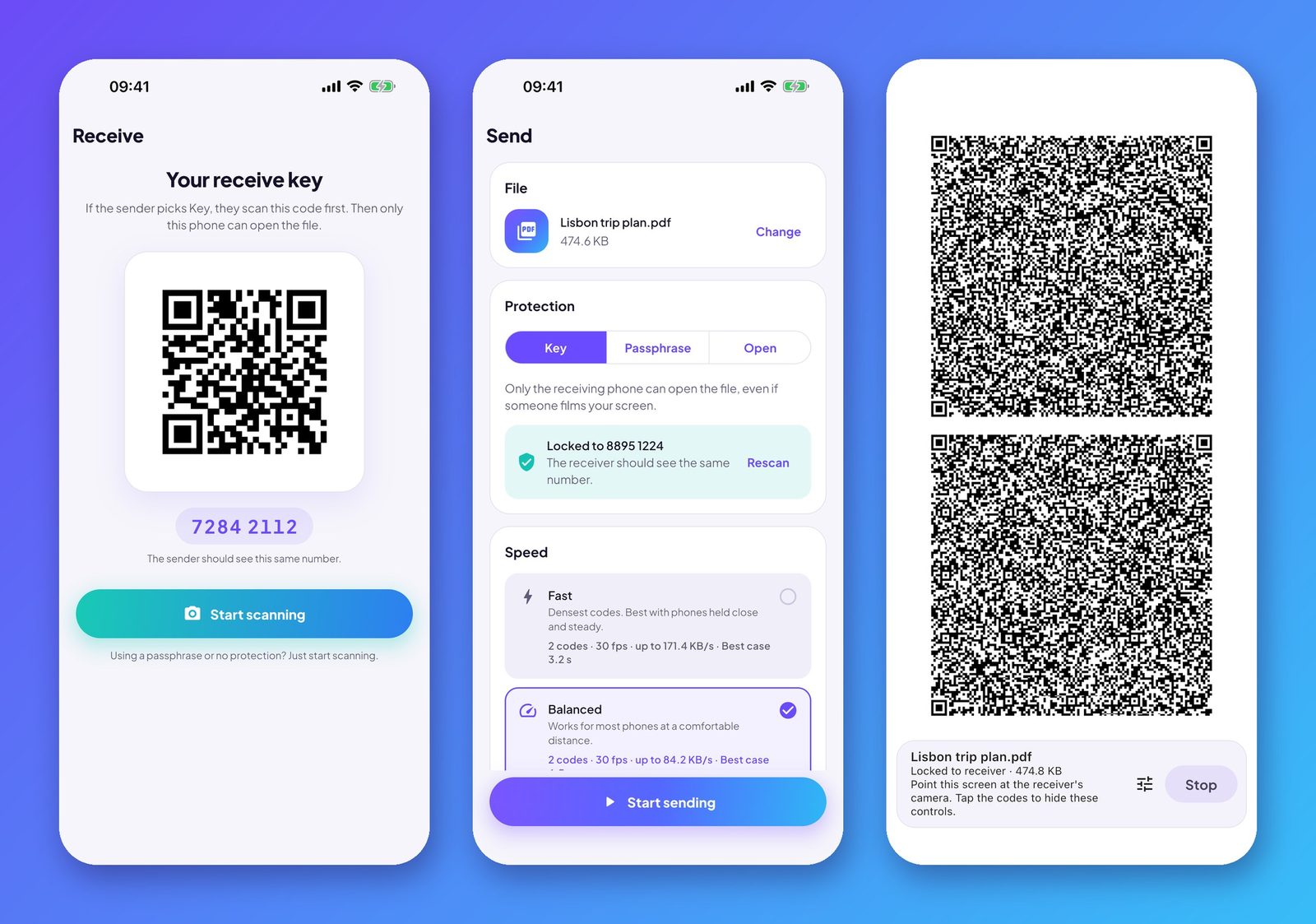
- Key. The receiving phone shows a code holding a fresh public key. The sender scans it, and from then on only that phone can open the file. Both screens show the same eight-digit number, so you can confirm you locked onto the right phone.
- Passphrase. Say a word out loud instead of scanning a code. The encryption key is derived from it with Argon2id.
- Open. No protection, for things like a public flyer. The app warns you before sending.
Under the hood, Key mode uses X25519 key agreement, HKDF-SHA256 and ChaCha20-Poly1305. Receive keys are created fresh every time you open the Receive screen, and they are never stored.
Send from any browser: the web app
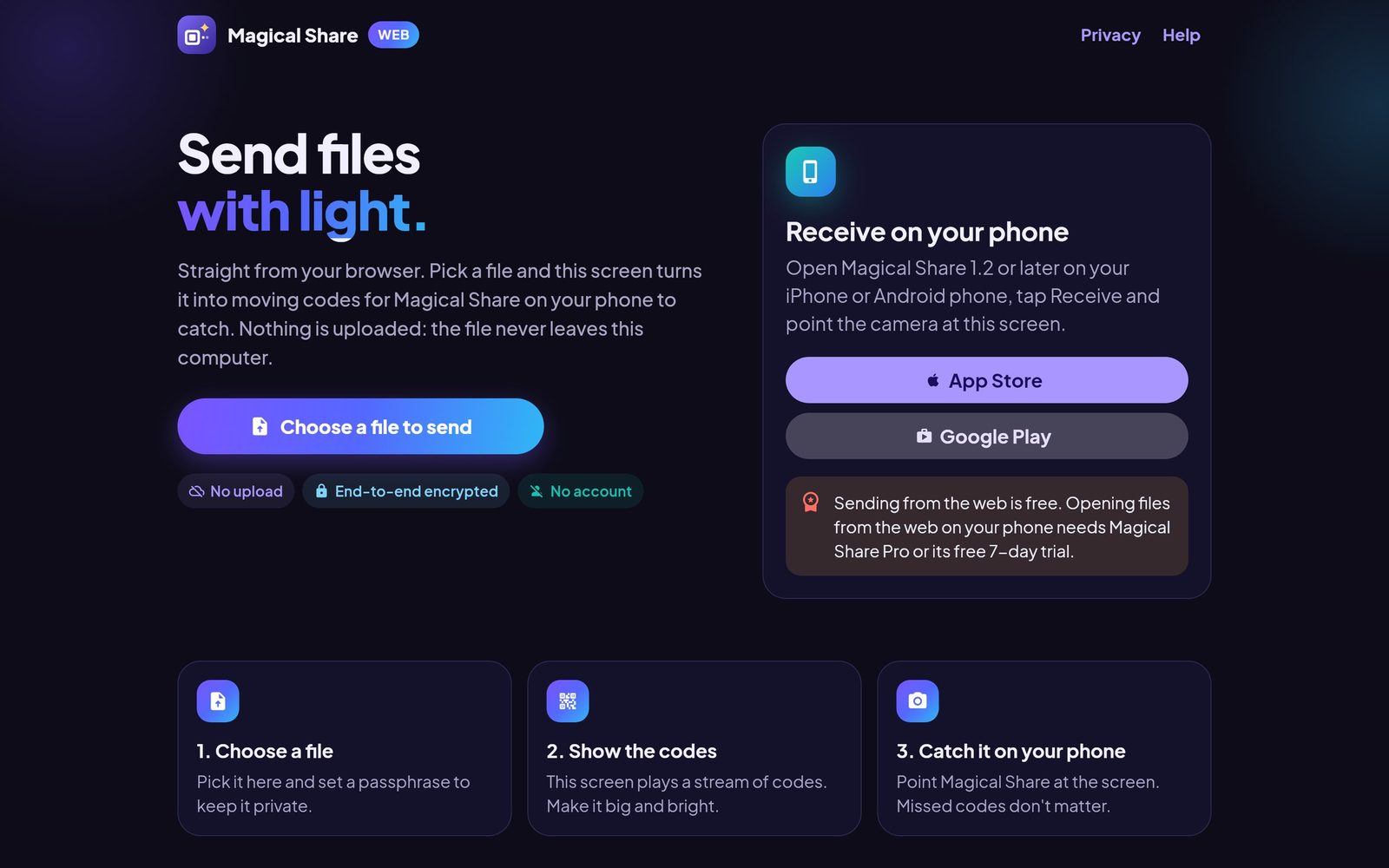
The quickest way to try Magical Share is the web app at apps.zincirx.com/magicalshare/web. It runs in a modern browser on any computer, and sending from it is free.
How to use it:
- Open apps.zincirx.com/magicalshare/web on your laptop or desktop.
- Click Choose a file to send, and set a passphrase so only someone who knows it can open the file.
- On your phone, open Magical Share and tap Receive, then Start scanning.
- Point the phone's camera at the computer screen. Make the codes big and bright. Missed codes don't matter.
Nothing is uploaded. The page turns the file into codes right in your browser, so the file never leaves your computer. Opening a file sent from the web uses Magical Share Pro or its free 7-day trial on the phone.
Send and receive on your phone
The phone app does both jobs. Get it on Google Play for Android. The iPhone version is coming to the App Store.
To receive a file:
- Open Magical Share and tap Receive. The screen shows your one-time key and an eight-digit number.
- Tap Start scanning and point the camera at the sender's screen.
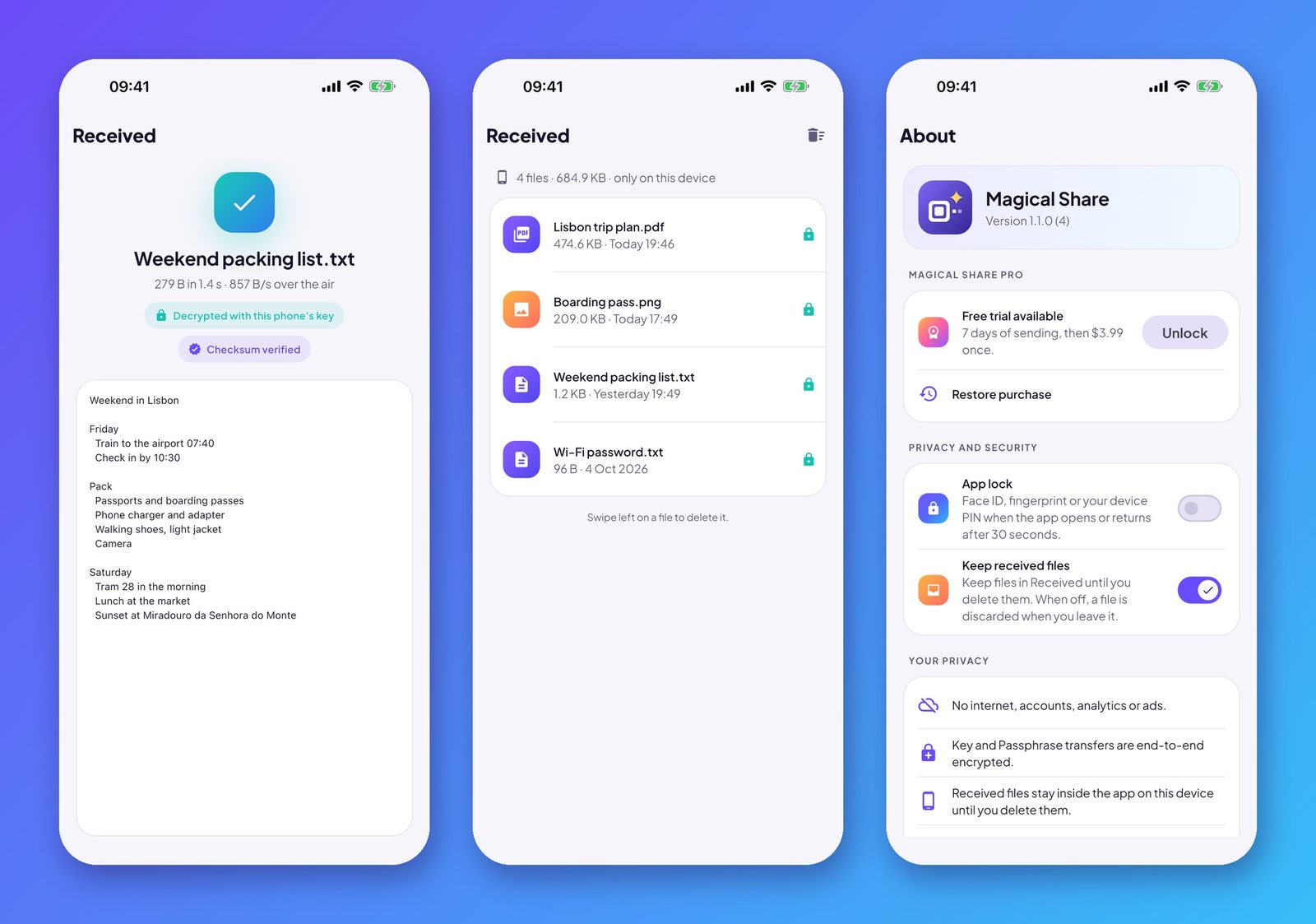
- The file appears as soon as every byte checks out, and it is kept in the app's private Received list.
To send a file:
- Tap Send and pick a file.
- Choose a protection mode. With Key, scan the receiver's code and check that both screens show the same number.
- Pick a speed: Fast for phones held close and steady, Balanced for a comfortable distance.
- Tap Start sending and hold your screen toward the other camera.
Received files stay inside the app, on that device only, until you delete them. If you would rather keep nothing, switch off Keep received files and each file is discarded when you leave it. App lock can require Face ID, a fingerprint or your device PIN, and relocks the app after 30 seconds away.
The app speaks 30 languages and follows your device language.
Send from your Mac
The Mac app is a sender. A large display makes an excellent transmitter, because bigger codes are easier for a phone camera to read. Pick a file, set a passphrase, and click Start sending.
Private by design
Privacy in Magical Share is how the app is built, not a setting you have to find:
- The Android app has no internet permission at all, so it cannot open a network connection.
- The Mac app runs in Apple's sandbox with no network access.
- There are no accounts, analytics, crash reporters, ads or trackers. The App Store privacy label reads "Data Not Collected".
- File names from senders are cleaned so they can't escape the save folder, and malformed input is rejected before it is processed.
Where it shines, and what it isn't for
Magical Share works where other sharing doesn't:
- On a plane, in a basement, or abroad without mobile data.
- Between an iPhone and an Android phone.
- On hotel or office Wi-Fi that blocks devices from seeing each other.
- On managed devices where Bluetooth or Wi-Fi is switched off.
It is built for documents, photos, contacts, notes, boarding passes and Wi-Fi passwords. Typical speeds are 50 to 100 KB per second, so a 500 KB PDF takes about 5 to 10 seconds. A large video is better sent another way.
One caution: the sending screen flashes rapidly at full brightness. If you are sensitive to flashing lights, don't look at the sending screen.
Pricing
- Free to download.
- Receiving from other phones is always free.
- Sending is free for 7 days, then a one-time Pro unlock of US$3.99. No subscription and no account.
- Sending from the web app is free. Opening web files on a phone needs Pro or the trial.
If you try it, we'd love to hear what you sent and where. Write to us at info@zincirx.com.